How to Convert a PNG or JPG to SVG: 3 Modes Explained
Bu yazı İngilizcedir.
Genel bakış
Turn a logo, drawing or photo into a clean SVG. Learn when to use black & white, flat colour or colour photo tracing, and how to get smooth, cut-ready paths.
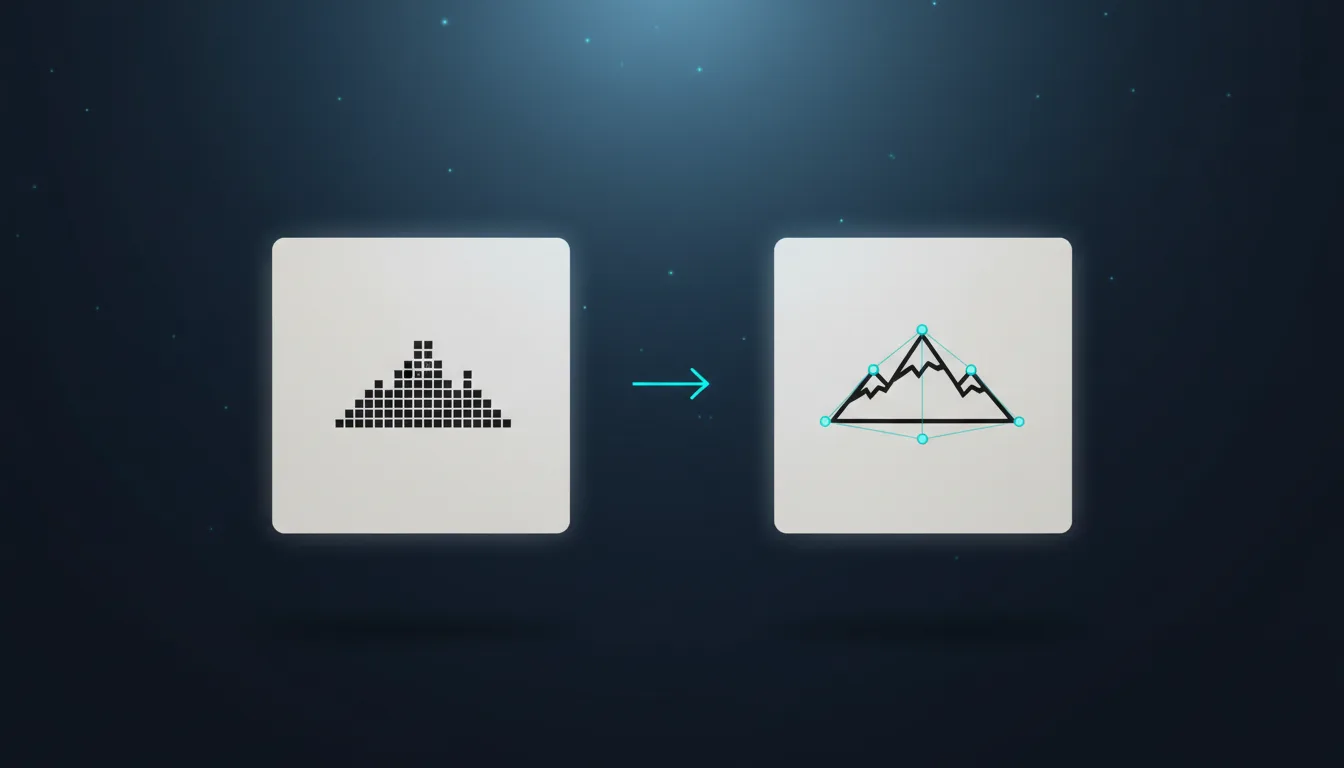
A PNG or JPG is a grid of coloured pixels. It looks fine at the size it was made for, but it blurs when you enlarge it and a cutting machine cannot follow it. An SVG describes the same picture as shapes and curves, so it stays sharp at any size and Cricut Design Space, LightBurn or Illustrator can work with every line. Converting one into the other is called tracing or vectorizing, and the right method depends on what is in the picture.
Pick the mode that matches the picture
The VectorSVG Vectorizer looks at your image as soon as you drop it in and suggests one of three modes. You can always switch.
- Black & white for logos, line art, signatures, text and stencils. It traces every dark area as a solid shape with smooth Bézier curves. This is the mode for vinyl, stencils and laser cutting.
- Flat colour for illustrations, stickers, clipart and logos with a few solid colours. It groups the picture into a set number of colours (2 to 32) and traces each one as its own layer.
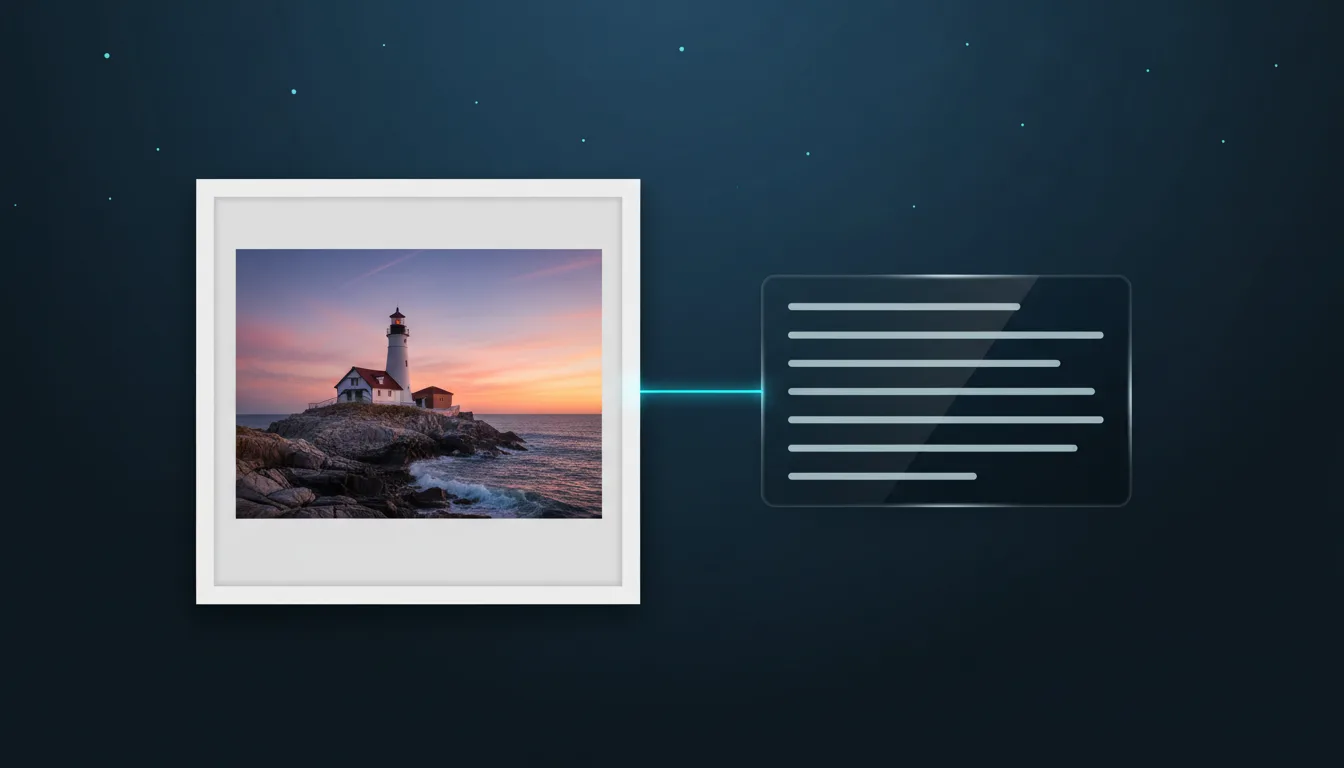
- Colour photo for real photographs: people, pets, products and places. A photo has soft shading in every pixel, so instead of tracing colours one by one it redraws the photo as a vector illustration with clean, layered shapes.
The first two modes run on our own servers, cost nothing and are unlimited on every paid plan. Colour photo mode uses an AI model and is included in each plan as a monthly number of conversions (50, 200 or 500).
Step by step
- Open the Vectorizer and drop, paste or choose a PNG, JPG or WEBP up to 20 MB.
- Check the mode it picked. A photo should say Colour photo; a logo usually Black & white or Flat colour.
- Adjust the sliders: Colours sets how many layers flat colour mode keeps, Smoothing rounds corners and removes jitter, and Detail decides how small a speck may be before it is dropped.
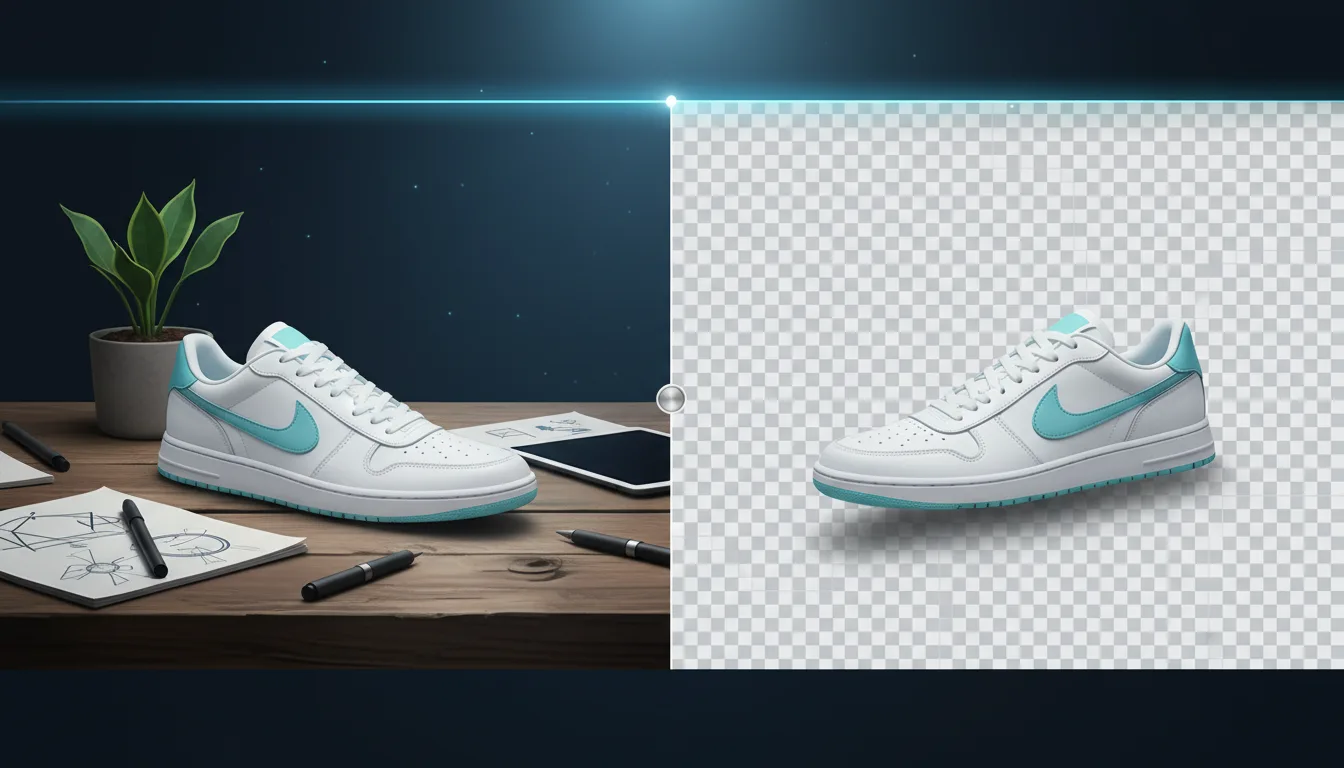
- Turn on Remove background if the picture sits on a white or solid backdrop you do not want as a shape.
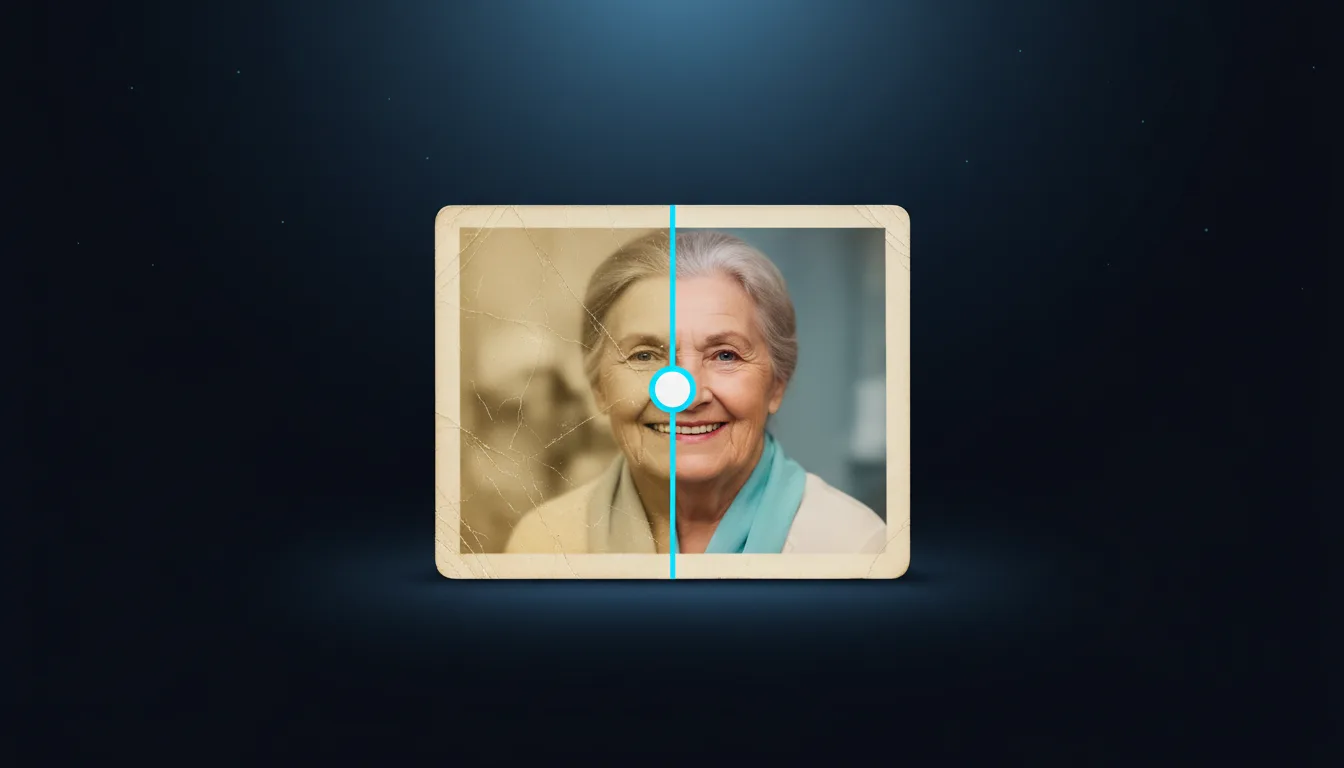
- Compare the original and the vector with the slider, then download SVG, PDF or DXF.
Tips for cleaner paths
- Start from the largest, sharpest file you have. A 300 px logo traces worse than the same logo at 1500 px; run it through the AI Upscaler first if it is small.
- Fewer colours give simpler files. For a two-colour logo, set Colours to 2 or 3 rather than leaving it at 8.
- Raise Smoothing for hand-drawn art with shaky lines; lower it for lettering with sharp corners.
- For cutting, black & white mode is usually best: one colour means one cut layer and no tiny overlaps.
Which format should I download?
SVG is the one to use almost everywhere: Cricut Design Space, Silhouette Studio, Glowforge, Inkscape, Illustrator, Figma and the web. PDF keeps the paths as vectors for printing and for sending to a print shop. DXF holds every outline as a polyline in millimetres, which is what LightBurn, xTool Creative Space and most CAD and CNC software import.
Is it free?
You can try the Vectorizer on a free account and see the full result as a watermarked preview. Downloads are part of the paid plans, which also include the monthly colour photo conversions. Your uploads are deleted automatically after two days and are never used to train models.
Kendin dene
Kendi SVG'ni stüdyoda yap
Bir tasarımı tarif et ya da fotoğraf yükle, 17 stilden birini seç ve saniyeler içinde temiz bir SVG ya da lazere hazır bir görsel indir. Krediler her ücretli planla gelir.