How to Make Cut-Ready SVG Files for Cricut with AI
Bu yazı İngilizcedir.
Genel bakış
Describe a design and get a real SVG with closed, bold paths that Cricut and Silhouette cut cleanly. Prompts, styles and settings that work every time.
Most AI image generators give you a picture made of pixels. That is fine for a poster, but a Cricut or Silhouette needs outlines it can follow with a blade. The VectorSVG AI SVG Studio skips that problem: its vector styles draw the design as a real SVG from the start, in pure black on white, with bold strokes and closed shapes that are made to be cut.
Write a prompt that cuts well
A cut file is not a painting. Describe one clear subject and say how it should be drawn, not how it should be lit.
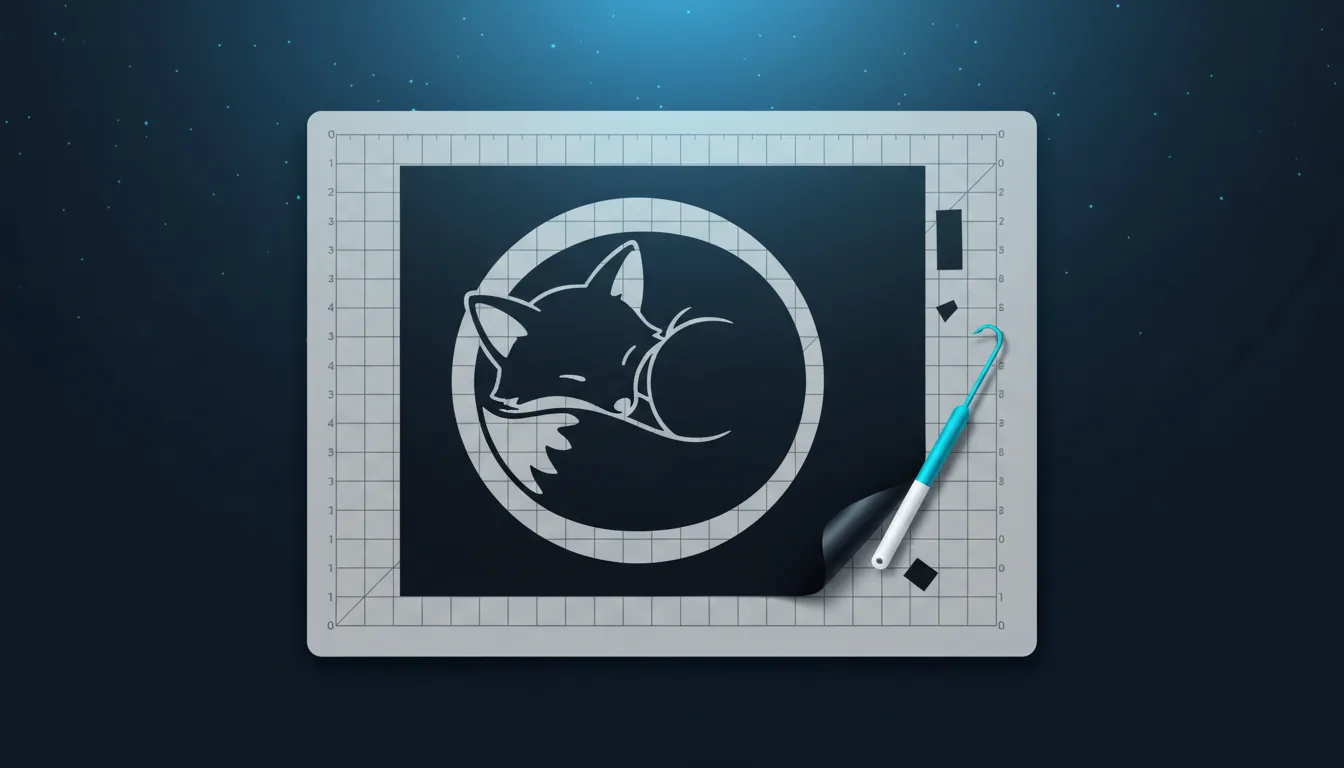
- Name the subject and its pose: "a sleeping fox curled in a circle", "a mountain range inside a circle".
- Ask for simple, bold shapes: "thick outlines", "no tiny details", "easy to weed".
- Mention the layout if it matters: "centred", "inside a circle", "with the word Adventure underneath".
- Leave out lighting, textures and photo words like "realistic" or "4K"; they add specks that are hard to cut.
Choose a vector style
Eight of the studio's fifteen styles are vector styles that return an SVG. For cutting, these four are the most useful:
- Silhouette: one solid black shape. The easiest file to cut and weed, perfect for vinyl decals and wall art.
- Outline: an even line drawing with open space inside. Great for layered vinyl and for draw-then-cut projects.
- Clean: bold, simple shapes with solid fills. A good default for logos, shirts and mugs.
- Cartoon: thick outlines and friendly shapes, made for stickers and kids' projects.
Linocut, Engraving, Line art and Flat round out the set when you want more texture or a print look.
Settings that matter
- Ratio: pick 1:1 for most decals, 4:5 or 3:4 for shirts and signs, 2:3 for tall designs.
- Images: ask for 1, 2 or 4 versions. Each image costs 1 credit, so four gives you a choice for 4 credits.
- Background: keep it transparent so there is no white box around the design when you upload it.
- Reference picture (optional): add a photo or sketch and choose whether the studio should follow its shape and pose or only borrow its drawing style.
You have five seconds to cancel after you press send; credits are taken only after that, and any picture the safety check blocks is refunded.
From the studio to the mat
Download the SVG and upload it to Cricut Design Space with Upload, then Browse. It opens as a single cut layer you can resize freely. If you only need part of the design, use Contour to switch pieces off. For Silhouette Studio, open the SVG directly (Designer Edition) or download the DXF from the design's page.
Keep what you make
Every picture you make is saved as a private creation in My creations. From there you can download it again as SVG, PNG, PDF or DXF, or share it to Explore so other makers can find it. Paid plans include commercial use, so you can sell the shirts, decals and signs you cut.
Kendin dene
Kendi SVG'ni stüdyoda yap
Bir tasarımı tarif et ya da fotoğraf yükle, 17 stilden birini seç ve saniyeler içinde temiz bir SVG ya da lazere hazır bir görsel indir. Krediler her ücretli planla gelir.