How to Prepare a Photo for Laser Engraving
Bu yazı İngilizcedir.
Genel bakış
Get crisp laser engravings on wood, slate and leather. How to choose and clean the photo, which laser style to use, and the settings that keep faces clear.
A laser does not print shades of grey. It burns dots, and how dense those dots are decides how dark an area looks. That is why a photo that looks great on screen can come out muddy on wood: soft gradients and busy backgrounds turn into noise. The fix is to prepare the picture before it reaches the laser, so the engraving has strong contrast and clear lines to work with.
1. Start with the right photo
- Choose a sharp picture where the subject fills most of the frame. Faces should be at least a few hundred pixels wide.
- Even light beats dramatic light. Deep shadows become black blobs on wood.
- A plain background helps. If it is busy, take it out first with the AI Background Remover (1 credit).
- If the photo is small or soft, enlarge it 2× with the AI Upscaler before anything else.
2. Turn it into line art made for the laser
Instead of sending a grey photo to the laser and hoping the dithering works out, redraw it as an engraving. The AI SVG Studio has seven laser styles that do exactly that: they draw your subject in black lines, hatching or dots on white, so every shade is something the laser can actually burn.
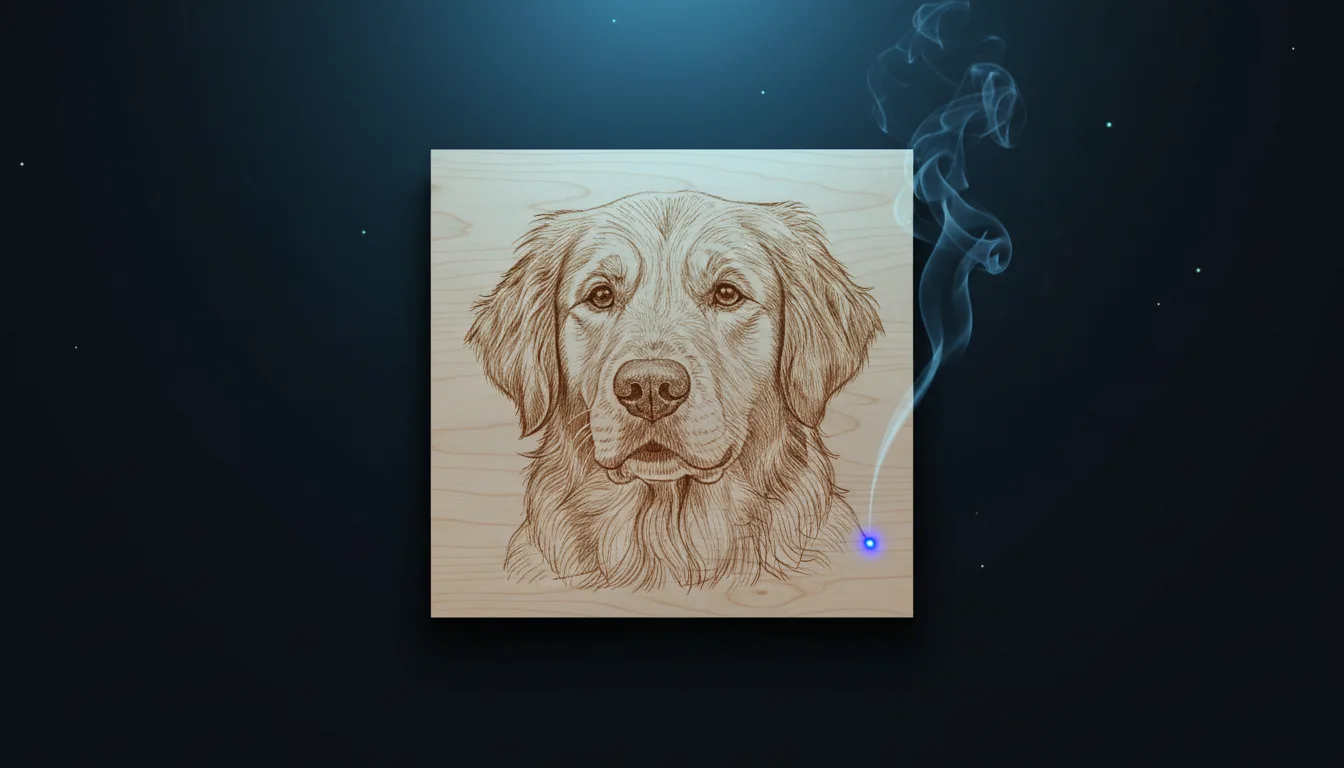
- Pencil sketch: soft graphite hatching, lovely on light woods like maple and birch.
- Master pencil: richer tones and finer cross-hatching for portraits and pets.
- Deep engraving: banknote-style lines with deep contrast, ideal for slate and anodised aluminium.
- Ink drawing and Line sketch: bold pen lines for leather, cork and plywood.
- Stipple: shading made only of dots, which suits slate and tiles beautifully.
- Doodle: playful marker lines for gifts and kids' projects.
Add your photo as the reference picture and choose "follow shape and pose" so the likeness stays. Laser styles return a high-resolution PNG, the format LightBurn and xTool expect for engraving.
3. Settings in your laser software
- Import the PNG and set the size first; the line art scales cleanly to the usual 10–30 cm.
- Use a dithering mode such as Jarvis or Stucki for pencil styles, and Threshold for ink and line styles.
- Run a small test on scrap of the same material. Wood species burn very differently.
- On slate, engrave with lower power and invert nothing: the white marks are the burn.
Want depth instead of lines?
For a carved, three-dimensional look, make a depth map of the photo with the 3D Relief tool and engrave it in grayscale mode, or mill it on a CNC. We cover that in detail in our guide to 3D reliefs.
Quick checklist
- Sharp photo, subject large in frame, plain background.
- Redraw it in a laser style instead of engraving the raw photo.
- Test on scrap, then engrave the real piece.
Kendin dene
Kendi SVG'ni stüdyoda yap
Bir tasarımı tarif et ya da fotoğraf yükle, 17 stilden birini seç ve saniyeler içinde temiz bir SVG ya da lazere hazır bir görsel indir. Krediler her ücretli planla gelir.