Skip to content
All toolsGuide & FAQ

Image : PNG

Drop an image here

Upscale small or soft images to sharp, print-ready resolution. Great before tracing, printing or engraving.

How it works

PNG · JPG · WEBP · HEIC · up to 20 MB · Ctrl+V to paste

How to use the AI Image Upscaler

Enlarge small or soft pictures 2× or 4× and get sharp, print-ready detail instead of blurry pixels.

  1. 1

    Upload the image

    Add a picture up to 20 MB. Small web images and old scans benefit the most.

  2. 2

    Choose scale and model

    Pick 2× or 4×, then Photo, Art or Text & logos, and set how much noise to remove.

  3. 3

    Compare and download

    Drag the slider to compare before and after, then save the enlarged PNG or JPG.

See the detail it adds

Drag the handle across each picture: the left side is the original enlarged the usual way, the right side the upscaler's result at the same size.

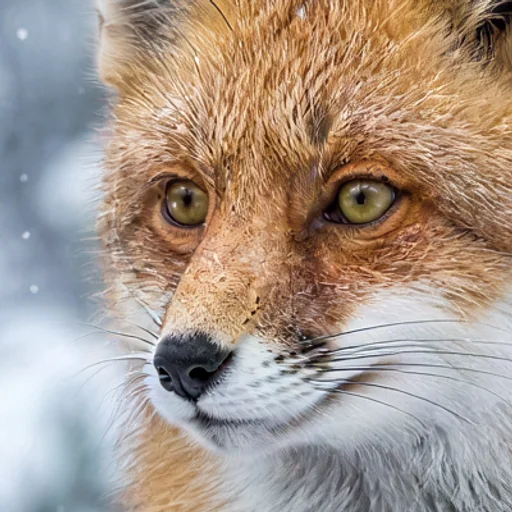
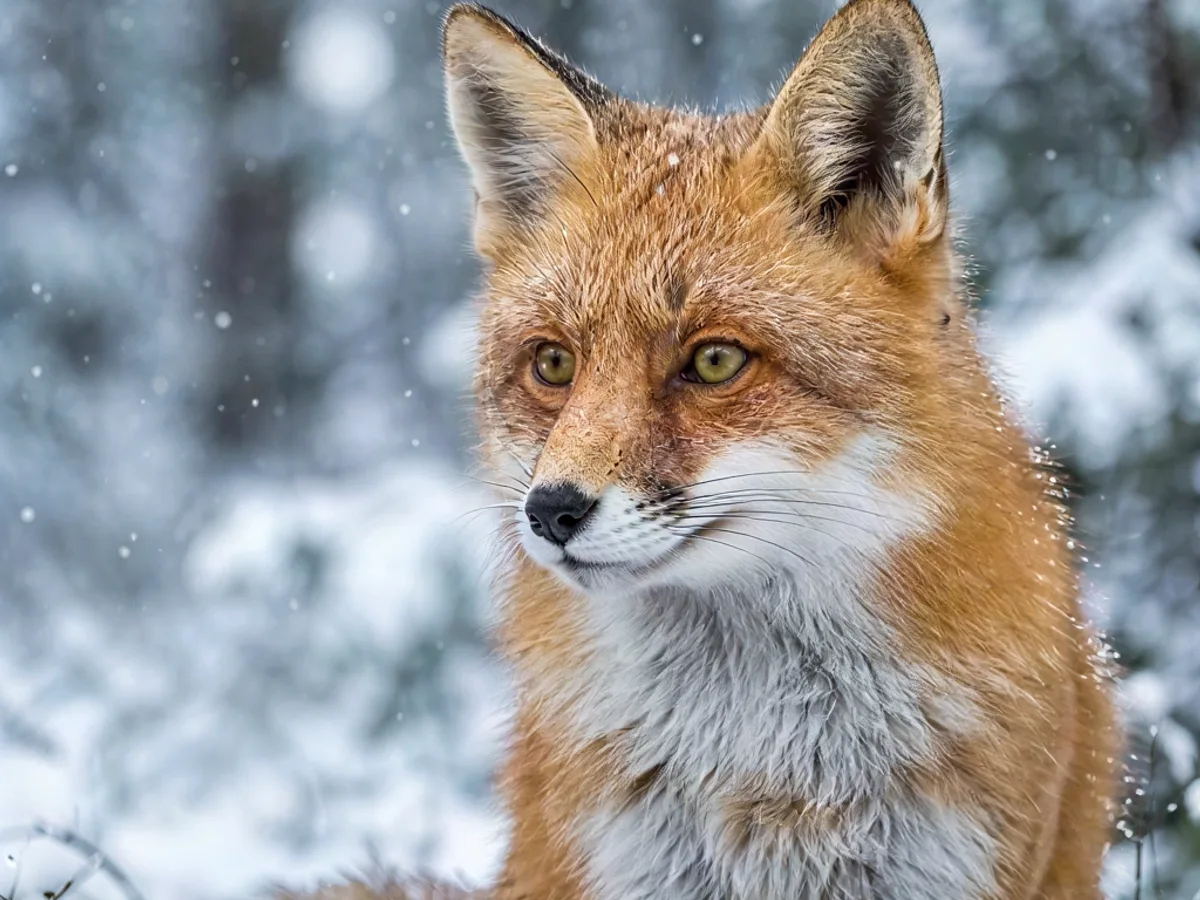
A small fox photo before and after a 4× upscale
BeforeAfter

A small picture made big

A 256 px fox became 1024 px: sharp eyes, separate whiskers and fur you can count, where simple enlarging gives only blur.

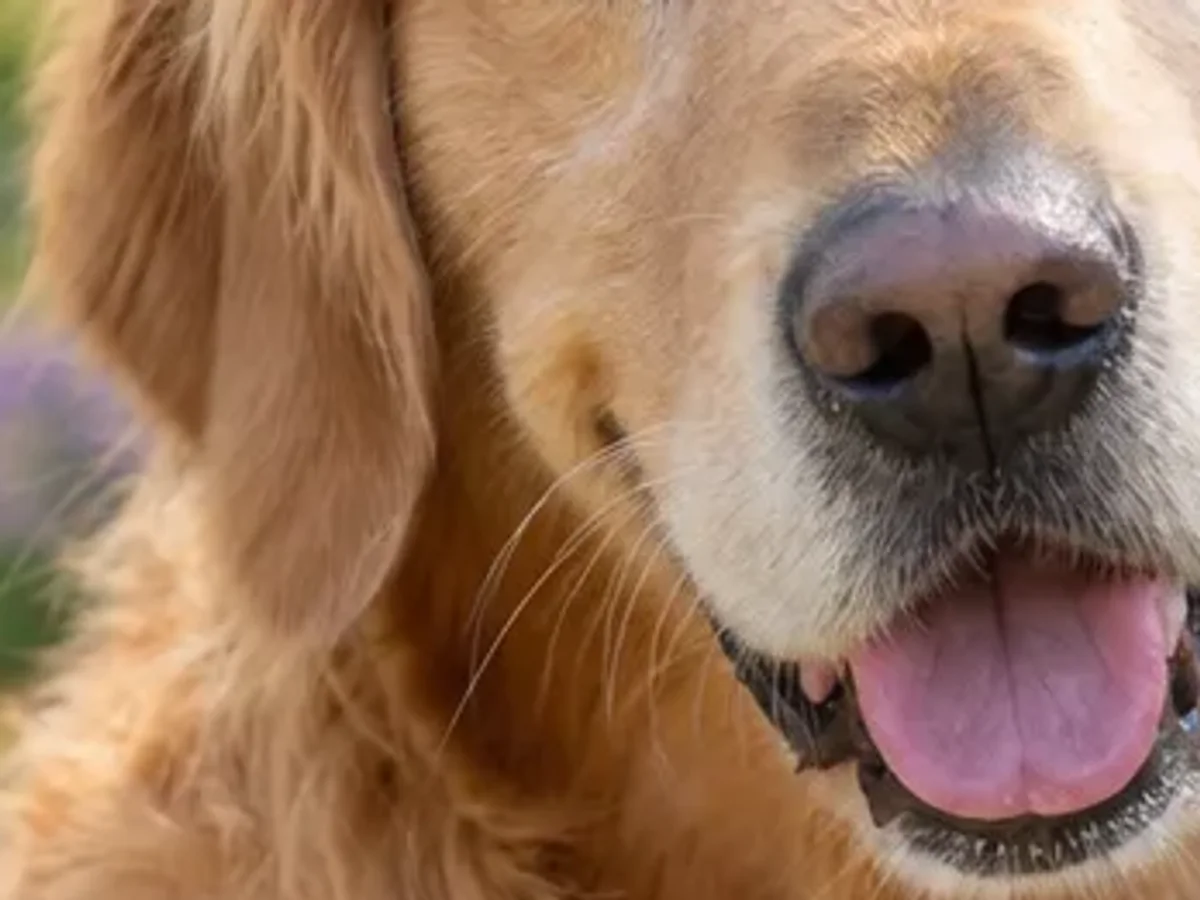
A close-up of a dog's face before and after a 2× upscale
BeforeAfter

A close look at fine detail

A close-up of a 1024 px photo upscaled 2×: the eyes, nose and single hairs stay crisp when you zoom in or print large.

What is the AI Image Upscaler?

The AI Image Upscaler rebuilds detail as it enlarges a picture, so edges stay crisp and textures look natural instead of blocky. Choose 2× or 4×, and a model tuned for photos, illustrations or text and logos.

It is the step to take before tracing a low-resolution logo, printing a poster or engraving a photo: more clean pixels give the vectorizer and your laser more to work with. Each run costs 1 credit.

Formats and limits

Input
PNG, JPG, WEBP, HEIC, AVIF
Output
PNGJPG
Max file size
20 MB per file
Price
1 credit
Runs in
VectorSVG servers
Privacy
Files are deleted automatically after 2 days and are not used to train AI models.

Upload PNG, JPG, WEBP, HEIC or AVIF up to 20 MB. Results up to 4096 px on the long side as PNG or JPG. 1 credit per run.

What makers use it for

  • Laser engraving and cutting

    Enlarge a small photo before engraving so the dithering has real detail to reproduce.

  • Cricut and cutting machines

    Sharpen a low-resolution clipart before tracing it into a cut file.

  • Print and stickers

    Print posters, canvases and stickers at 300 DPI from images that were too small.

  • Print on demand

    Meet the minimum pixel size that print-on-demand shops ask for without visible blur.

Tips for the best result

  1. Tip 1: Use Text & logos for graphics with flat colours and hard edges: it avoids soft halos.

  2. Tip 2: Upscale before you vectorize a tiny logo; the traced curves come out smoother.

  3. Tip 3: Keep noise reduction low for photos with fine texture such as wood or fabric.

  4. Tip 4: 4× on a very small image can look painted; try 2× twice and compare.

Frequently asked questions

How large can I upscale?

2× or 4×, up to 4096 pixels on the longest side. For bigger prints, vectorize the image instead: SVG scales without limit.

Does upscaling add detail that was not there?

The model predicts plausible detail from what it sees. It looks sharp and natural, but it cannot recover text or faces that are completely unreadable.

Which model should I choose?

Photo for pictures of people, pets and places, Art for illustrations and paintings, and Text & logos for graphics with flat colour.

How much does it cost?

1 credit per image, whatever the scale. Credits come with every paid plan.

Is my image kept?

No. Files are deleted automatically after 2 days and are not used to train models.

Should I upscale before vectorizing?

For small or blurry images, yes. A larger, cleaner source gives the vectorizer smoother curves and fewer stray nodes.

More in Convert and fix a picture

Turn the picture you already have into a clean, usable file: vector, cut-out, sharper or restored.
See all

Keep going in the AI SVG Generator

Turn your result into clean vectors with the vectorizer or generate a new design from a prompt.