Lightroom preset →: Capture One style
Your result appears here
Drop a Lightroom preset to see its look and make a Capture One style
How to use the Lightroom to Capture One Converter
Move your Lightroom presets to Capture One. Drop .xmp or .lrtemplate presets, see the look on a photo, and download Capture One styles (.costyle), or a whole set as one .costylepack. Free and private.
- 1
Add your presets
Drop one .xmp or .lrtemplate preset, or up to 10 at once.
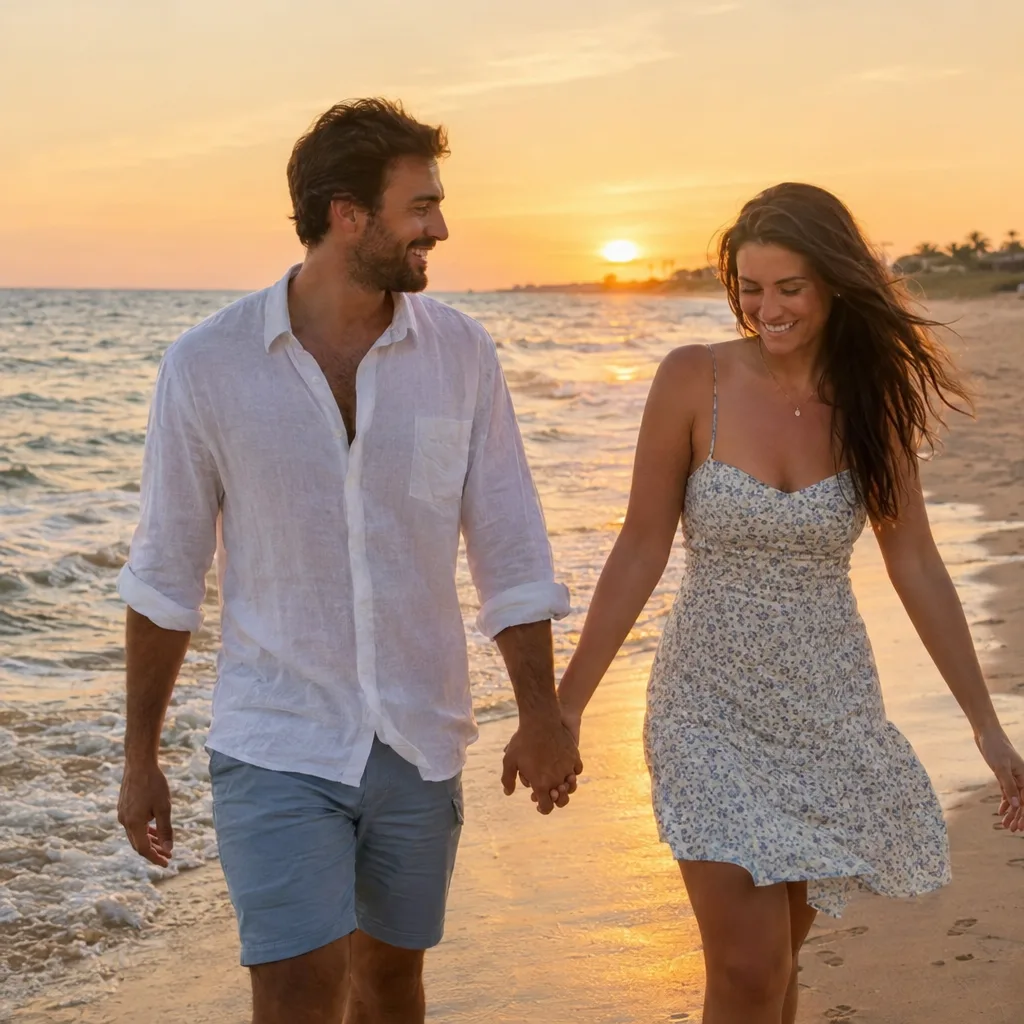 Upload your image
- 2
Check the look
Drag across the photo to compare, or try it on your own photo; see what goes into the style.
Check the lookLightroom to Capture One Converter - 3
Download the style
Save a .costyle, or a .costylepack for several, and double-click it to install in Capture One.
W2048H2048FormatXMPXMPCOSTYLEExportSaved
What is the Lightroom to Capture One Converter?
Lightroom keeps its looks as presets (.xmp, or .lrtemplate in older versions); Capture One keeps them as styles (.costyle). The two programs cannot read each other's files, so photographers moving to Capture One usually rebuild every preset by hand. This converter reads the preset's settings and writes a Capture One style: exposure, contrast, highlight and shadow recovery, whites and blacks, clarity and structure, dehaze, saturation and vibrance, all four tone curves, split toning or colour grading as Colour Balance, and film grain.
Lightroom and Capture One process photos differently, so a style comes out close to the preset, not identical; contrast and clarity are scaled to Capture One's ranges. White balance (a raw photo's Kelvin), HSL, vignette, sharpening, noise reduction, lens corrections and masks have no place in a converted style and are listed under the upload box. Several presets download as one .costylepack, which Capture One installs in one go. Everything runs in your browser.
Formats and limits
- Input
- Lightroom and Camera Raw presets: .xmp and .lrtemplate
- Output
- COSTYLECOSTYLEPACK
- Max file size
- 20 MB per file
- Price
- Free
- Runs in
- Your browser
- Privacy
- Your image never leaves your device: the browser does all the work and nothing is uploaded.
Open .xmp and .lrtemplate presets (up to 5 MB each, 10 at once). Save a .costyle, or a .costylepack (ZIP) for several. Runs in your browser.
What makers use it for
Laser engraving and cutting
Keep the photos of your laser-cut products the same look after moving from Lightroom to Capture One.
Cricut and cutting machines
Edit the photos of your Cricut projects in Capture One with the presets you made in Lightroom.
Print and stickers
Proof print work tethered in Capture One with the looks your clients know from Lightroom.
Print on demand
Give a whole shop's product photos one look in Capture One, from your Lightroom presets.
Tips for the best result
- 01
Tip 1: Double-click a .costyle or .costylepack and Capture One adds it under Styles › User Styles.
- 02
Tip 2: Check a style on a raw photo with the white balance set first: white balance is not part of the style.
- 03
Tip 3: If a look is too strong, lower the style's opacity in Capture One's Styles and Presets tool.
- 04
Tip 4: Converting a whole collection? Drop up to 10 presets and get one .costylepack.
Frequently asked questions
Can Capture One open Lightroom presets?
No. Capture One uses its own styles (.costyle) and cannot read Lightroom's .xmp or .lrtemplate presets. Convert them here and install the styles in Capture One.
How do I install a .costyle in Capture One?
Double-click the file, or in Capture One open the Styles menu › Import Styles and pick it. A .costylepack installs every style in it at once.
Will the style look exactly like my Lightroom preset?
Close, not identical. Both programs process raw files their own way, so contrast, clarity and curves are carried over and scaled to Capture One's ranges, and the result is a good starting point to fine-tune.
What is not converted?
White balance, HSL, vignette, sharpening, noise reduction, lens corrections and local masks. They have no direct place in a converted style; the page lists which of them your preset uses.
Can I convert many presets at once?
Yes, up to 10 presets in one go, saved as one .costylepack. A batch costs 1 credit; single presets are free (members get 3 free files a day, then 1 credit each).
Is my preset uploaded?
No. The preset is read and the style written in your browser; nothing leaves your device.
More in Edit and finish
Pick colour palettes, make gradients and carry photo looks over to Lightroom.
 Color Palette Generator14 moods, or pull HEX colours from any imageFree
 Mesh Gradient GeneratorSoft colour blends with free SVG, PNG and CSS exportFree
 XMP to LRTEMPLATE ConverterTurn Lightroom XMP presets into .lrtemplate files, freeFreeLRTEMPLATE to XMP ConverterTurn old .lrtemplate presets into XMP for today's LightroomFreeNewDNG to XMP ConverterTurn Lightroom mobile DNG presets into XMP filesFreeNewXMP to CUBE ConverterTurn Lightroom presets into 3D LUTs (.cube)FreeNewCUBE to XMP ConverterTurn a .cube LUT into a Lightroom profileFreeNewXMP Metadata Viewer & RemoverSee and remove what an .xmp file holdsFreeNew